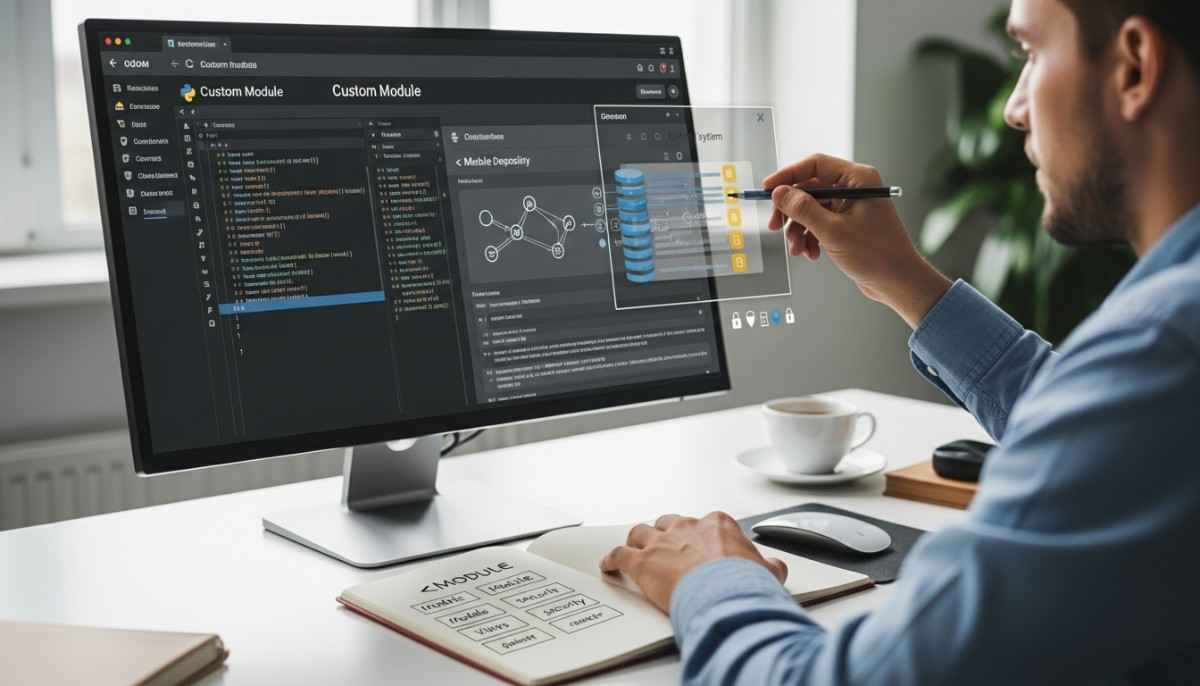
To create a custom module in Odoo, you build a small folder with a standard structure, add a __manifest__.py file so Odoo can detect it, write a model in Python with the ORM, add XML views for the screen, set access rights in ir.model.access.csv, then restart Odoo and install the module from Apps.
- Create the module skeleton with the scaffold command (or manually).
- Add the __manifest__.py file and list dependencies and data files.
- Create a model in models/ using Odoo ORM fields.
- Build UI with XML views, actions, and menus in views/.
- Add security rules, restart Odoo, update Apps, and install.
Table of contents
- What a custom module is
- What you need before you start
- Create the module (scaffold and manual)
- Understand the manifest
- Build your first model (ORM)
- Create views, actions, and menus (UI)
- Security and access rights
- Install and test the module
- Troubleshooting
- Best practices for upgrade-safe modules
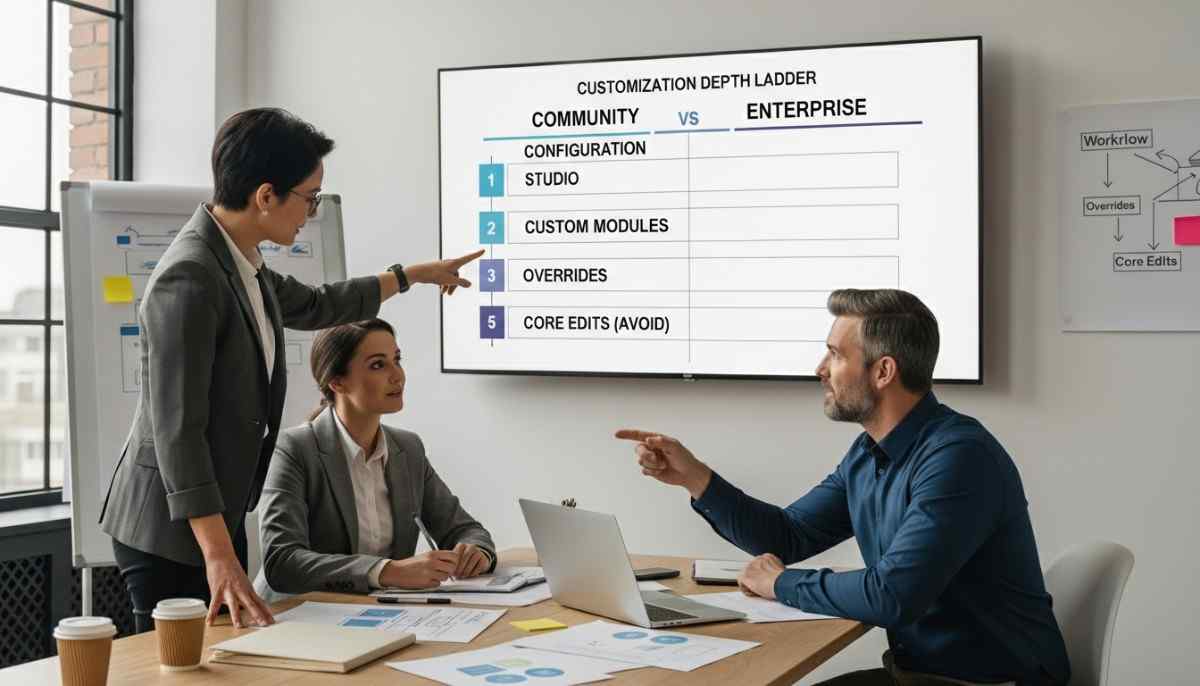
- When to use Odoo Studio vs code
What a custom module is
A custom module is the safest way to add or change features in Odoo
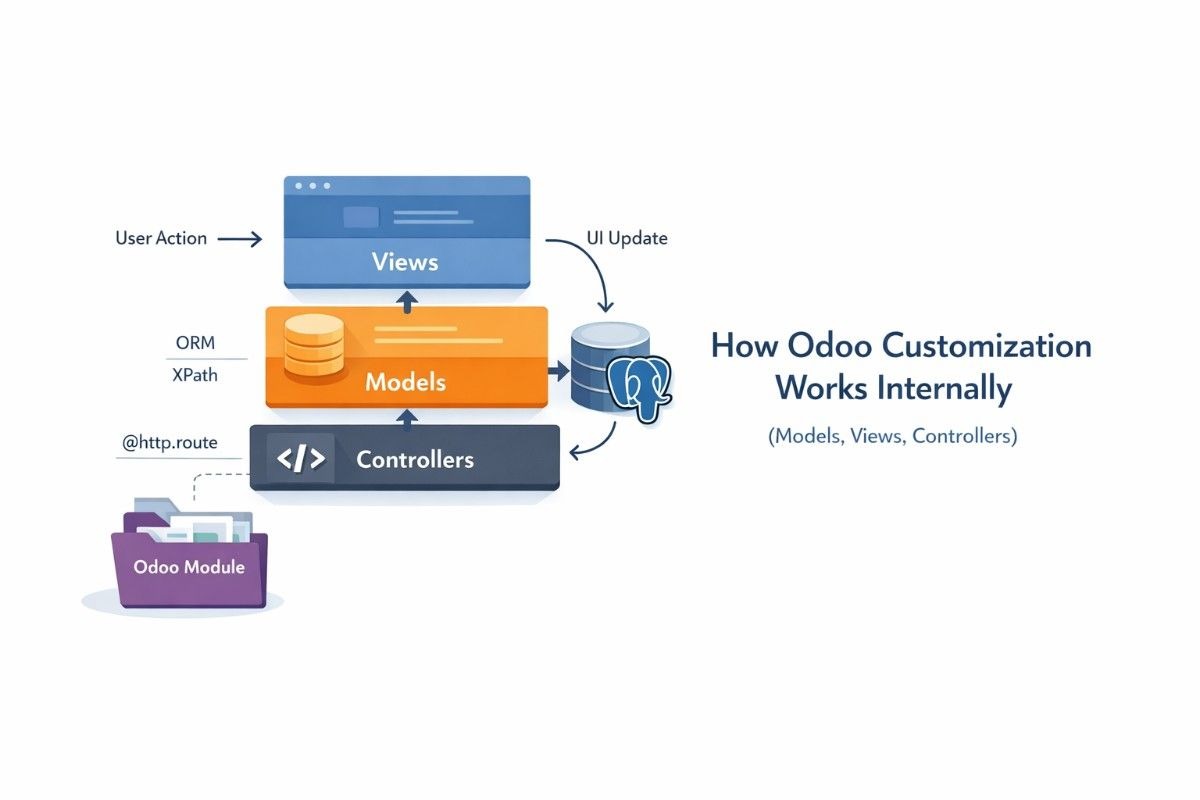
A custom module is a small package that adds new business logic or changes existing logic without editing Odoo core files, which keeps upgrades safer.
If you want a plain-language primer first, read Odoo ERP modules explained and then come back.
A beginner-friendly folder tree shows how Odoo loads your code
A module is just a folder with a few required files and optional folders for features. Odoo treats it like a Python package and loads what you list in the manifest.
my_service_ticket/
├─ __init__.py
├─ __manifest__.py
├─ models/
│ ├─ __init__.py
│ └─ service_ticket.py
├─ views/
│ └─ service_ticket_views.xml
├─ security/
│ └─ ir.model.access.csv
└─ data/
└─ service_ticket_data.xml
- __init__.py: tells Python what to import.
- __manifest__.py: tells Odoo what this module is and what to load.
- models/: Python code for ORM models and business rules.
- views/: XML screens like form and list views.
- security/: access rights and record rules.
- data/: default records you want to load.
What you need before you start
You need a working Odoo dev setup so you can run and restart often
You need Odoo source code (or an installed Odoo), Python, and a PostgreSQL database so you can run the server and see changes fast. In my 10 years building Odoo modules, most beginner pain comes from a messy dev setup, so keep it simple and repeatable with one addons folder you control.
You should know your Odoo version and keep your module general
You should match your code style and features to your Odoo version, but the module structure, manifest, models, views, and security basics stay the same across modern versions. For a bigger picture of options, see what Odoo ERP customization means.
Create the module (scaffold and manual)
The scaffold command creates the standard module structure in seconds
You can generate a clean skeleton with one command, then fill in your models, views, and security files.
./odoo-bin scaffold my_service_ticket /path/to/custom_addons
Odoo’s own tutorial shows this workflow in the Odoo official “Building a Module” tutorial.
The addons path tells Odoo where to find your custom addon
You must add your custom addons folder to the addons path so Odoo can detect your module, even if the folder exists on disk. A simple pattern is to keep custom_addons/ next to the Odoo source and include it in your server command.
./odoo-bin -d mydb –addons-path=”custom_addons,odoo/addons”
Understand the manifest
The __manifest__.py file is the module’s “ID card” for Odoo
The manifest declares your folder as an Odoo module and lists metadata, dependencies, and data files Odoo must load. You can verify the keys and rules in the Odoo manifest documentation.
Here is a minimal manifest you can copy:
{
“name”: “Service Tickets”,
“version”: “1.0.0”,
“category”: “Services”,
“summary”: “Track simple service tickets”,
“depends”: [“base”],
“data”: [
“security/ir.model.access.csv”,
“views/service_ticket_views.xml”,
],
“application”: True,
“installable”: True,
}
- name: module name shown in Apps.
- version: your version string.
- depends: modules that must be installed first.
- data: XML and CSV files to load (views, security, data files).
- application: shows it as an app.
If you want a deeper roadmap after this post, follow the complete guide to Odoo customization.
Build your first model (ORM)
A model is the database-backed object that stores your records in Odoo
A model defines fields, rules, and behavior using the Odoo ORM, which saves you from writing raw SQL for most tasks.
Create models/service_ticket.py:
from odoo import models, fields, api
from datetime import date
class ServiceTicket(models.Model):
_name = “x.service.ticket”
_description = “Service Ticket”
name = fields.Char(string=”Title”, required=True)
priority = fields.Selection(
[(“0”, “Low”), (“1”, “Medium”), (“2”, “High”)],
string=”Priority”,
default=”1″,
required=True,
)
state = fields.Selection(
[(“new”, “New”), (“in_progress”, “In Progress”), (“done”, “Done”)],
string=”Status”,
default=”new”,
required=True,
)
request_date = fields.Date(string=”Request Date”, default=fields.Date.today, required=True)
days_open = fields.Integer(string=”Days Open”, compute=”_compute_days_open”, store=False)
@api.depends(“request_date”, “state”)
def _compute_days_open(self):
for rec in self:
if rec.request_date and rec.state != “done”:
rec.days_open = (date.today() – rec.request_date).days
else:
rec.days_open = 0
_name and _description tell Odoo how to label and store your model
The _name value becomes the technical model name used in XML, security, and code, and _description becomes the human label you often see in the UI.
Add models/__init__.py:
from . import service_ticket
Add the module root __init__.py:
from . import models
If you want more examples like this, read how to develop custom Odoo modules.
Create views, actions, and menus (UI)
XML views create the screens users click and fill in
Views define how users see and edit records, while actions and menus make the screens reachable.
Create views/service_ticket_views.xml:
<odoo>
<!– List (tree) view –>
<record id=”view_service_ticket_tree” model=”ir.ui.view”>
<field name=”name”>x.service.ticket.tree</field>
<field name=”model”>x.service.ticket</field>
<field name=”arch” type=”xml”>
<tree>
<field name=”name”/>
<field name=”priority”/>
<field name=”state”/>
<field name=”request_date”/>
<field name=”days_open”/>
</tree>
</field>
</record>
<!– Form view –>
<record id=”view_service_ticket_form” model=”ir.ui.view”>
<field name=”name”>x.service.ticket.form</field>
<field name=”model”>x.service.ticket</field>
<field name=”arch” type=”xml”>
<form>
<sheet>
<group>
<field name=”name”/>
<field name=”priority”/>
<field name=”state”/>
<field name=”request_date”/>
<field name=”days_open” readonly=”1″/>
</group>
</sheet>
</form>
</field>
</record>
<!– Action –>
<record id=”action_service_ticket” model=”ir.actions.act_window”>
<field name=”name”>Service Tickets</field>
<field name=”res_model”>x.service.ticket</field>
<field name=”view_mode”>tree,form</field>
</record>
<!– Menu –>
<menuitem id=”menu_service_root” name=”Service”/>
<menuitem id=”menu_service_ticket”
name=”Tickets”
parent=”menu_service_root”
action=”action_service_ticket”/>
</odoo>
View inheritance lets you change existing screens without editing core
View inheritance works like “patching” a view, so you can add a field or button to a standard Odoo screen while keeping upgrades safer.
If you want the broader strategy, read customize Odoo without breaking core functionality.
Security and access rights
Security starts with access rights so Odoo knows who can read or edit your model
Odoo checks access in layers, and you should start by giving basic model permissions through an ACL file called ir.model.access.csv. Odoo’s security tutorial explains this flow and shows the CSV format in the Odoo security documentation.
Create security/ir.model.access.csv:
id,name,model_id/id,group_id/id,perm_read,perm_write,perm_create,perm_unlink
access_service_ticket_user,access_service_ticket_user,model_x_service_ticket,base.group_user,1,1,1,0
- model_x_service_ticket is the external id for your model that Odoo generates.
- base.group_user grants access to internal users.
- perm_unlink set to 0 blocks delete for safety.
Least privilege keeps your data safer and matches RBAC principles
Least privilege means you give only the permissions people truly need, which maps well to role-based access control (RBAC) where roles group permissions for easier control. The classic NIST RBAC model explains why role-based permissions reduce admin risk in real systems. See the NIST RBAC paper.
If your business needs a clean security plan plus custom features, consider Odoo customization services for upgrade-safe work that does not block future updates.
Install and test the module
Installing means restart, update the apps list, then click Install
Odoo only detects new files after a restart, and it only shows your module after you update the Apps list.
Server steps (common approach):
- Restart Odoo.
- Run an update for your module when you change code:
./odoo-bin -d mydb -u my_service_ticket –addons-path=”custom_addons,odoo/addons”
UI steps:
- Turn on Developer Mode.
- Go to Apps.
- Click “Update Apps List”.
- Search your module name and click Install.
Troubleshooting
Most beginner errors come from paths, manifests, security CSV, or XML syntax
You can fix most problems by checking the addons path, the manifest data list, and the Odoo server log line that shows the first real error.
Module not showing in Apps
The module usually does not show because Odoo cannot see your addons folder or you did not update the Apps list.
- Confirm –addons-path includes your custom_addons.
- Confirm the folder name matches your technical module name.
- Confirm __manifest__.py exists and has a name.
Missing dependency
This error usually happens because depends lists a module that is not installed or not available.
- Remove the dependency if you do not need it.
- Install the dependency first.
- Check spelling in depends.
Access error (Forbidden or Access Denied)
This error usually means your ACL or record rules block the action.
- Start with a simple ir.model.access.csv rule.
- Make sure you used the correct model_id/id.
- Test with an admin user to isolate security issues.
CSV id error (no matching record found)
This error usually means your CSV references an external id that does not exist.
- Confirm the model external id is correct (often model_<model_name_with_underscores>).
- Recheck commas and header row formatting.
- Restart and upgrade the module again.
View parse error (XML)
This error usually means a tag is wrong or a referenced id does not exist.
- Validate XML nesting and closing tags.
- Confirm you used the correct model name in the view.
- Confirm your manifest loads the XML file in data.
For deeper long-term quality habits, follow Odoo development best practices.
Best practices for upgrade-safe modules
You stay upgrade-safe by extending with inheritance and keeping changes organized
You avoid painful upgrades when you extend standard models and views instead of editing core code, keep files grouped by purpose, and track changes in Git. If you want an architecture-level view, read Odoo customization technical overview.
Field-tested checklist
- Use model inheritance when you extend existing features.
- Use view inheritance to adjust screens.
- Keep views/, security/, and data/ tidy and small.
- Name ids clearly so you can debug faster.
- Upgrade with -u your_module and watch the logs.
- Add at least one basic test when the logic matters.
When to use Odoo Studio vs code
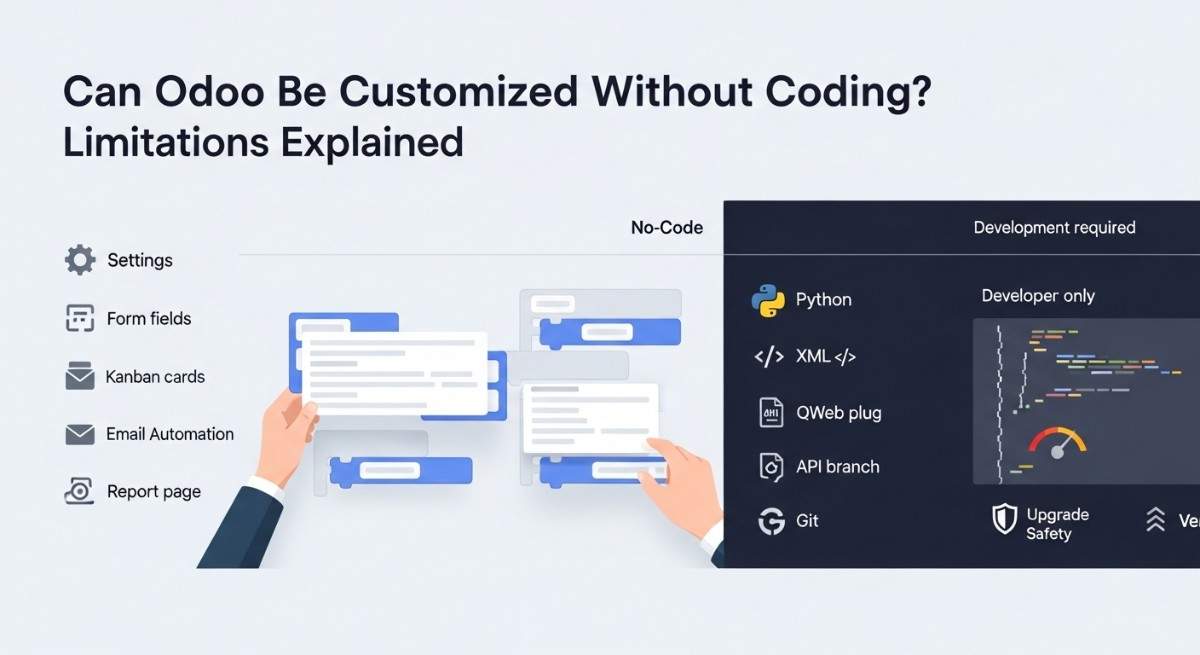
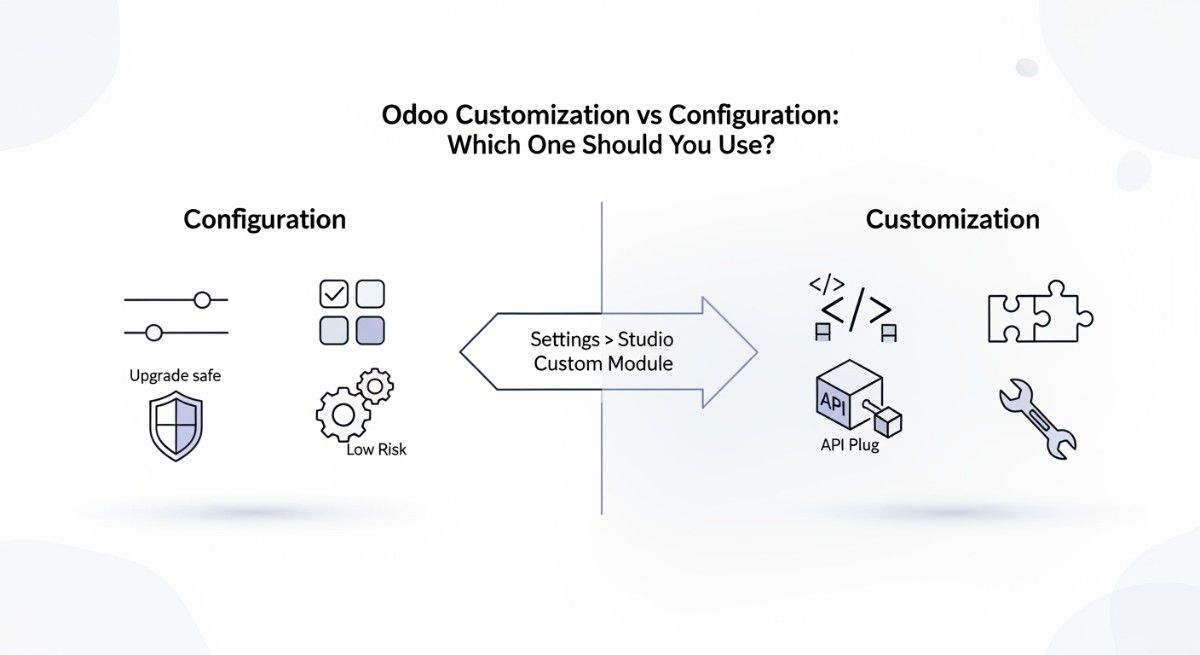
Odoo Studio fits simple fields and screens, while code fits real logic and scale
Studio works well when you add fields, simple views, and small rules, but code wins when you need computed logic, integrations, complex security, or reusable modules across databases. If you plan integration work, start with top Odoo integrations for productivity to pick the right approach early.
You grow fastest by learning a few high-impact building blocks
You can level up quickly by learning wizards (popups), reports, controllers for APIs, QWeb templates, and assets in static/src for UI polish.
Practical next topics:
- Wizards for guided flows
- Reports (PDF and custom layouts)
- Controllers for web routes and integrations
- Assets and small JavaScript widgets
- Translations in i18n/
- Basic tests and log-based debugging
If you are choosing what to customize first, use top Odoo modules to customize first to pick work that returns value fast.
Need hands-on help? Talk to us through Odoo customization services and get an upgrade-safe module built the right way.
FAQs (Frequently Asked Questions)
1) What is __manifest__.py in Odoo?
__manifest__.py is the file that tells Odoo your folder is a module. It includes the module name, dependencies, and which files Odoo must load. If Odoo cannot read it, your module will not install.
2) Where do I put my custom addons?
You put custom addons in a folder you control, like custom_addons/, and you add that folder to the addons path. Odoo only scans folders listed in –addons-path. Restart after changes.
3) Why is my module not showing in Apps?
Your module usually does not show because Odoo cannot see the addons folder or you did not update the Apps list. Check –addons-path, confirm the manifest exists, then update the Apps list in Developer Mode.
4) How do I add access rights for a new model?
You add access rights in security/ir.model.access.csv. Start with read, write, and create for internal users, then tighten later. Odoo checks these permissions before record rules.
5) What is the difference between ACL and record rules?
ACL controls model-level permissions like read or write for a group. Record rules filter which records a user can access after ACL passes. Use ACL to set the base and record rules to narrow access.
6) Can I create a module without coding?
You can build simple apps with Odoo Studio without writing Python. You still need coding for complex logic, integrations, custom reports, or advanced security rules. A hybrid approach often works best.
7) How do I update my module after changes?
Restart Odoo and upgrade the module with -u your_module_name. This loads new XML, security, and Python changes. Always check the logs after an upgrade.
8) What is the safest way to customize Odoo?
The safest way is to use custom modules and inheritance instead of changing core files. This keeps upgrades cleaner and reduces conflict risk. Use small, focused modules.
9) How do dependencies work in Odoo modules?
Dependencies tell Odoo which modules must install first. Odoo loads your dependency modules before it loads your module’s data files. Keep the list small and only include what you truly use.
10) Is Odoo Studio enough for complex logic?
Studio is not enough when you need computed fields with business rules, automation across apps, APIs, or custom UI behavior. Code gives you full control and makes your work reusable across environments.