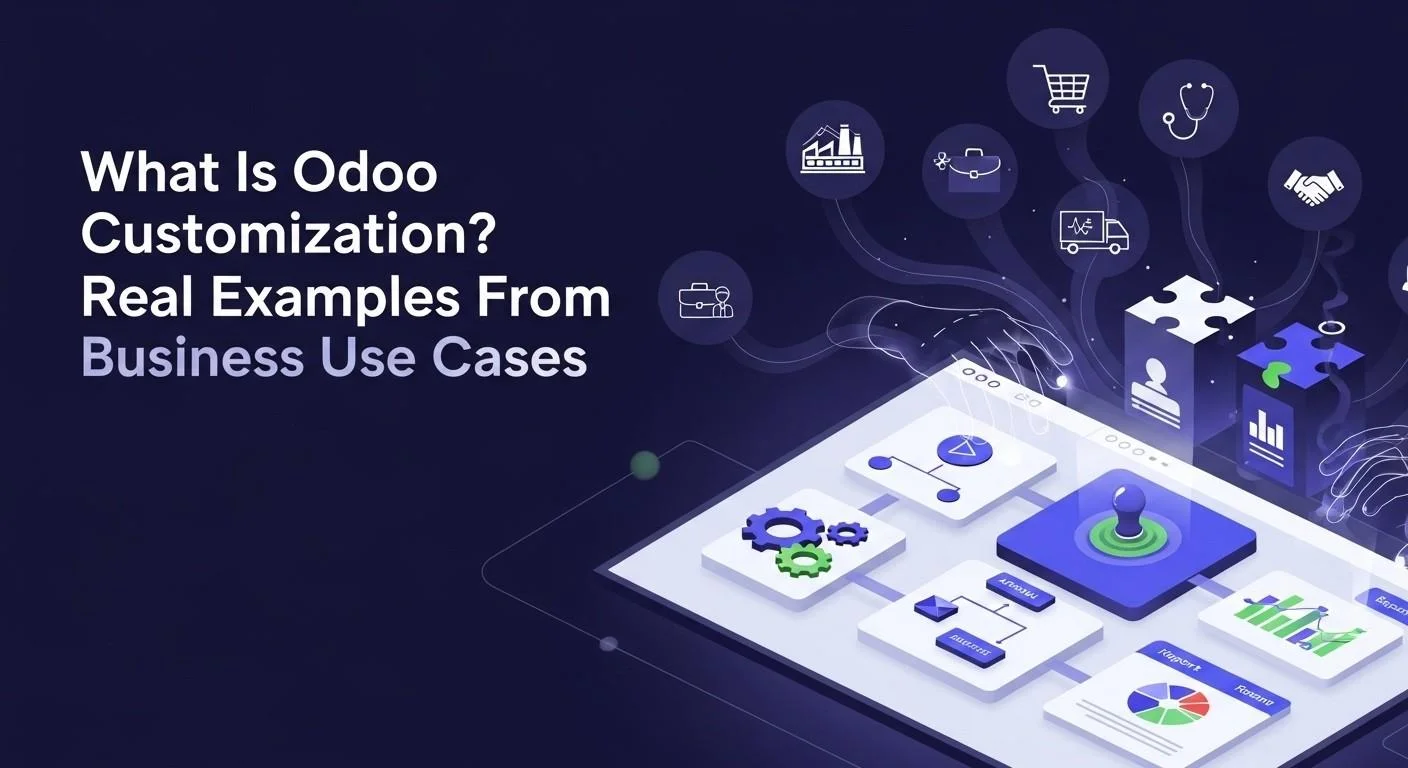
Many teams buy an ERP, then feel stuck because the screens and steps do not match how work really happens. Odoo customization fixes that by shaping Odoo to your workflow instead of forcing your workflow to fit the software.
Odoo customization is the process of changing or extending Odoo ERP so it matches your real business workflow, often by adjusting screens, rules, reports, or building custom modules and integrations.
What you will learn:
- What “Odoo customization” means in plain words
- How customization is different from configuration and Odoo Studio
- The 5 main types of customization with easy examples
- A safe decision tree to pick the right option
- 6 real business case studies with before and after workflows
What is Odoo customization?
Odoo customization means you change Odoo so it fits your business steps. You do this when the default flow adds extra clicks, misses key fields, or cannot handle your approval rules.
Customization exists because “standard” ERP cannot match every industry and team habit. A factory, a clinic, and an online store all sell and track items, but they do it in different ways.
Customization should solve a workflow problem, not a personal preference. When you tie changes to a clear goal like fewer errors or faster order processing, your ERP stays clean and useful.
If you want a bigger foundation first, start with the Odoo customization guide.
Customization vs configuration and where Odoo Studio fits
Configuration means you use built-in settings to match your business without code. You set things like taxes, units, user roles, email templates, routes, and approval rules that already exist.
Odoo Studio helps when you need small changes without coding. You can add fields, rearrange forms, adjust views, and build simple automations using the Studio tool. Learn more on the Odoo Studio app page.
Customization is code-level work when settings and Studio cannot do the job. You might build a custom module, change how documents move between stages, or connect Odoo to an outside system using an integration.
If you want a clear baseline, read what Odoo ERP customization is.
Rule of thumb:
- If Odoo has a setting for it, configure it first.
- If it is a small UI change, try Studio next.
- If it changes logic, approvals, or data models, build a custom module.
- If it connects systems, build or use an integration.
The 5 main types of Odoo customization with examples
1) UI and UX changes
UI customization changes what users see so they work faster with fewer clicks. You can hide fields that confuse users, rename labels to match your language, and reshape menus so teams find what they need.
A good UI change reduces mistakes and training time. When users only see the fields they must fill, they stop guessing.
If you want the deeper technical side of screens and views, read the Odoo customization technical overview.
2) Workflow and approvals
Workflow customization changes the steps a document follows inside Odoo. You might add a two-step approval for purchase orders, or block invoice posting until a manager checks the delivery.
Workflow changes protect your process when many people touch the same record. Clear stages and approvals reduce “who changed this” issues.
For safe patterns, see how to customize Odoo without breaking core functionality
3) Custom modules
Custom module development adds new features that standard Odoo does not have. This is the best choice when you need new models, new business rules, or a new app-like feature.
A custom module keeps your change clean because it lives outside core code. This helps when you upgrade, test, or roll back.
If you plan to build modules, read how to develop custom Odoo modules.
4) Integrations
Integration customization connects Odoo to other tools so data moves without manual work. Common examples include eCommerce platforms, payment systems, shipping carriers, BI tools, and messaging apps.
A good integration prevents double entry and keeps one source of truth. When orders and stock sync in real time, you avoid overselling.
5) Reports and dashboards
Report and dashboard customization changes what leaders and teams can measure. You might create a custom invoice layout, a compliance report, or a KPI dashboard for daily operations.
Better reporting makes decisions faster because people trust the numbers. When everyone reads the same dashboard, meetings become shorter and clearer.
If you want ideas on which areas teams often extend, see top Odoo modules to customize.
The decision tree that keeps odoo customization safe
The safest customization is the one that solves the problem with the least change. Use this path in order so you avoid upgrade pain and technical debt.
- Configuration first
Configuration is safest because Odoo upgrades keep it working. Use settings, standard modules, and built-in rules before anything else. - Odoo Studio next
Studio is safe for small UI changes and light automation. Use it for fields, layouts, and simple rules that do not rewrite core logic. - Custom module next
A custom module is best when you need new logic or new data models. Build with modular code so you can test, version, and upgrade with less risk. - Integration when needed
An integration is the right choice when another system must share data with Odoo. Use APIs and clear mapping so you can trace each data move. - Deep code changes last
Deep changes should be rare because they raise upgrades and support risk. When you must do them, isolate code, document it, and test like a product.
If you want process guardrails, read Odoo development best practices.
Odoo Customization in Action: 6 Practical Business Use Cases Real examples
1) Manufacturing: real-time production tracking
A manufacturer customizes Odoo when they need shop-floor visibility that standard screens do not show. The goal is to spot bottlenecks early and reduce downtime.
Problem: A factory could not see machine output and delays in one place.
Before workflow:
- Supervisor exports production data into spreadsheets
- Operators report issues by chat or paper notes
- Planning updates happen once per day
- Delays show up after deadlines slip
Customization applied:
- Add a simple “machine status” input and alerts inside Odoo
- Build a live dashboard for work orders and bottlenecks
- Automate warnings when a work center goes idle
Odoo parts involved:
- Manufacturing (MRP), Work Centers, custom dashboard
- Optional code parts: Python for rules, XML views for screens
Result:
- Teams often cut manual reporting time by 30 to 60%
- Teams often reduce missed planning updates by 20 to 40%
Upgrade-safe note:
- Keep logic inside a custom module and inherit views instead of editing core.
2) Retail and eCommerce: inventory sync across channels
A retailer customizes Odoo when stock accuracy breaks across many sales channels. The goal is to stop overselling and reduce returns caused by wrong stock.
Problem: A seller had different stock counts on the website and marketplaces.
Before workflow:
- Staff updates stock by hand on each channel
- Orders arrive late or in batches
- Refunds rise because items go out of stock
- Support spends time explaining delays
Customization applied:
- Build a real-time sync from Odoo Inventory to sales channels
- Add rules for backorders and substitution options
- Create a single “stock health” dashboard
Odoo parts involved:
- Inventory, Sales, connectors or custom integration
- Optional code parts: API work, webhooks, mapping logic
Result:
- Teams often reduce fulfillment errors by 20 to 40%
- Teams often reduce overselling events by 30% or more
Upgrade-safe note:
- Put integration logic in a separate module and avoid changes inside standard connector code.
3) Professional services: milestone billing instead of hourly
A services firm customizes Odoo when billing must match milestones, not time logs. The goal is to invoice at the right moment without chasing updates.
Problem: A firm billed by project stage, but Odoo invoicing followed hours.
Before workflow:
- PM tracks milestones in a document
- Finance checks emails to confirm “done”
- Invoices go out late
- Clients question what they are paying for
Customization applied:
- Add milestone objects to the project
- Trigger invoice draft when a milestone is approved
- Show milestone status on the customer portal
Odoo parts involved:
- Project, Timesheets (optional), Accounting, approvals
- Optional code parts: Python for milestone rules, QWeb for invoice notes
Result:
- Teams often shorten billing cycles by 15 to 35%
- Teams often reduce billing disputes by 10 to 25%
Upgrade-safe note:
- Build milestone logic as an add-on module and keep invoice changes in templates you control.
4) Healthcare or pharma: audit trails and traceability
Healthcare and pharma teams customize Odoo when they must prove who did what and when. The goal is traceability for inventory movements, batches, and approvals.
Problem: A regulated team needed clear logs for each stock move and batch.
Before workflow:
- Batch data sits in notes or separate tools
- Staff forgets to record who handled items
- Audits take weeks to prepare
- Errors show up after a complaint
Customization applied:
- Add required fields for lot, expiry, handler, and reason codes
- Block stock moves unless fields are complete
- Create an audit report for movement history
Odoo parts involved:
- Inventory, Lots and Serials, custom reports, access rights and record rules
Result:
- Teams often cut audit prep time by 30 to 50%
- Teams often reduce missing trace fields by 50% or more
Upgrade-safe note:
- Use inherited views and model extensions in a module, not edits to core inventory code.
Helpful trust references:
- Read the HIPAA Security Rule overview when you discuss security controls and access.
- Read the FDA 21 CFR Part 11 guidance when you discuss electronic records controls
5) Logistics: proof of delivery and shipment tracking
A logistics company customizes Odoo when tracking must be simple for frontline staff. The goal is faster updates, fewer lost packages, and better customer replies.
Problem: Staff struggled with complex shipment views and slow updates.
Before workflow:
- Drivers call dispatch to confirm delivery
- Dispatch updates records later
- Customers ask for proof and wait
- Claims rise when proof is missing
Customization applied:
- Build a simple delivery screen with only key fields
- Add photo upload for proof of delivery
- Send automated status messages to customers
Odoo parts involved:
- Inventory, Delivery Orders, optional SMS or email automation
- Optional code parts: mobile-friendly views, attachments, automation rules
Result:
- Teams often reduce “where is my order” tickets by 20 to 40%
- Teams often reduce proof-missing claims by 15 to 30%
Upgrade-safe note:
- Put the driver screen and proof flow in a custom module and keep core picking logic unchanged.
6) Sales: CRM messaging and WhatsApp follow-ups
Sales teams customize Odoo when they want faster follow-ups inside one screen. The goal is more touches per day with better tracking.
Problem: Reps used phones and chats outside the CRM, so history got lost.
Before workflow:
- Rep messages leads on a separate app
- Notes get added late or never
- Managers cannot see what happened
- Follow-ups get missed
Customization applied:
- Add a messaging panel inside CRM
- Log messages to the lead record automatically
- Create reminders based on last contact
Odoo parts involved:
- CRM, Activities, messaging integration
- Optional code parts: API integration, automation rules
Result:
- Teams often raise follow-up speed by 10 to 25%
- Teams often reduce missed follow-ups by 20% or more
Upgrade-safe note:
- Keep all messaging logic in an integration module and log only clean events into CRM.
Best practices to keep customization upgrade-safe
Upgrade-safe customization means you extend Odoo without changing its core files. When you avoid core edits, you can upgrade faster and fix issues with less stress.
Modular development keeps changes isolated and testable. A custom module lets you version your work and remove it if needed.
Version control and a staging environment prevent surprise outages. You test changes in a staging environment, then deploy to production after checks.
Testing and user acceptance catch workflow issues early. Simple test scripts like “create a quote, confirm, deliver, invoice” protect your revenue flow.
Documentation protects you when people change roles or vendors. Short docs that list the reason, the logic, and the screens save hours later.
Security review keeps private data private. Roles, access rights, and record rules must match real job duties, not convenience.
If you need a wider rollout plan, read this Odoo implementation guide for businesses
Security trust reference:
- Use the NIST Cybersecurity Framework 2.0 intro as a simple model for risk control
Failure patterns: 5 mistakes that cause upgrade pain or security risk
Most ERP problems come from small shortcuts that grow into big costs. Avoid these patterns from day one.
- Editing core code
Core edits make upgrades slow and risky. Put changes in a module and inherit instead. - Building features without a workflow goal
Random features create clutter and confusion. Tie each change to a KPI like error rate or cycle time. - Skipping testing
Untested changes break sales-to-cash and procure-to-pay flows. Test the top workflows every release. - Weak access control
Bad roles expose data and create fraud risk. Define groups and record rules based on job needs. - No documentation
No docs turn every issue into a mystery. Write short “why and how” notes for each change.
If you want guardrails for safe extensions, compare Odoo Enterprise vs Community choices too
When NOT to customize Odoo
You should not customize Odoo when the standard flow already works well. Standard flows often improve over time and stay easier to support.
You should not customize when the change only matches a habit, not a real need. If the team wants “the old way” with no clear benefit, keep Odoo standard.
You should not customize when the ROI is weak and upgrades will cost more than the gain. A small comfort change can cost a lot every time you upgrade.
If you need to explain scope to stakeholders, this ERP vs CRM.
Conclusion
Key takeaways:
- Odoo customization makes the ERP fit your workflow, not the other way around.
- Use the safest option first: configuration, then Studio, then modules and integrations.
- Upgrade-safe design needs modular code, testing, documentation, and strong access control.
Action checklist:
- Write the “before” and “after” workflow in bullets
- Pick the option using the decision tree
- Define the KPI you will improve
- Build in a staging environment and test core flows
- Document what you changed and why
If you want practical help to customize Odoo safely, use our Odoo customization services
FAQs(Frequently Asked Questions)
What is Odoo customization?
Odoo customization is changing or extending Odoo so it matches your workflow. It can be UI changes, workflow rules, custom modules, integrations, or reports.
Can Odoo be customized without coding?
Yes, you can do many changes without code using settings and Odoo Studio. Use Studio for fields and layouts, and use configuration for standard rules.
What is the difference between configuration and customization?
Configuration uses built-in settings, while customization adds or changes logic beyond settings. Configuration is safer for upgrades, and customization needs stronger testing and docs.
Is Odoo Studio enough for most businesses?
Odoo Studio is enough for many small UI changes, but not for complex logic. When you need deep approvals, new models, or heavy rules, build a custom module.
How much does Odoo customization cost?
Cost depends on scope, risk, and testing needs. Small UI changes cost far less than new modules or multi-system integrations.
How long does Odoo customization take?
Time depends on how clear the workflow and data rules are. Clear requirements and test scripts reduce rework and speed delivery.
Will customization break future Odoo upgrades?
It can, but safe modular work reduces the risk a lot. Avoid core edits, document changes, and test the main flows before upgrading.
Which Odoo hosting supports code customization?
Code customization needs an environment that supports custom modules and deployment control. Your hosting choice should match how you plan to develop, test, and upgrade.
What languages are used to customize Odoo?
Odoo uses Python for business logic and XML for views, plus QWeb for reports. Integrations often use APIs and webhooks too.
When should I build a custom module instead of changing an existing one?
Build a custom module when you want clean upgrades and clear ownership of the change. A separate module is easier to test, version, and remove.