
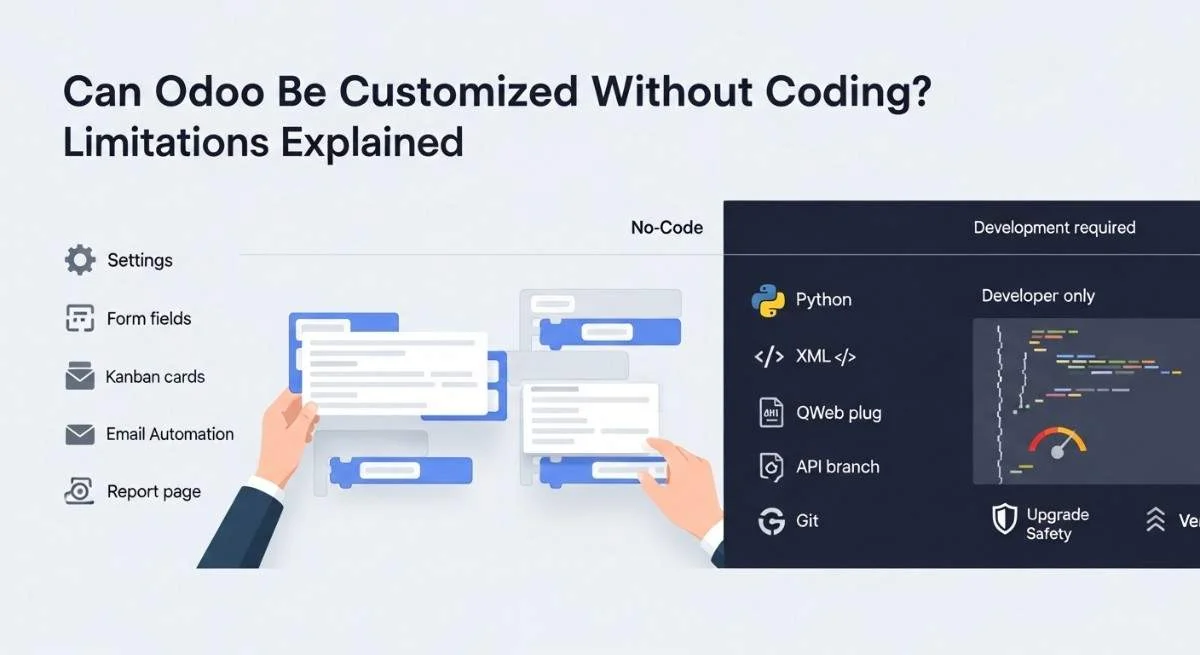
Yes, you can go far with Odoo customization without coding, but only up to the point where your needs stay “configuration-level” or “simple Studio-level.” Beyond that, you hit limits in logic, upgrades, integrations, reporting, and performance.
This guide shows the exact line between no-code changes and unavoidable development, so you can customize fast today without creating painful rework later.
If you are new to Odoo, start with what Odoo ERP is and then read what Odoo ERP customization means to avoid mixing “settings” with “development.”
The 3 customization layers in Odoo
Odoo has three main ways to change how it works, and each one fits a different level of need. When you pick the right layer, you get faster results and fewer upgrade problems.
Configuration (settings)
Configuration solves many needs without Studio or code by using built-in settings, user groups, sequences, accounting rules, routes, units of measure, and multi-company options.
This is the safest layer because it follows Odoo’s intended paths and survives upgrades best.
Studio (no-code and low-code patterns)
Studio lets you change screens and data structure fast using drag-and-drop fields, view edits, simple automations, approvals, and basic report edits.
Think of Studio as “UI and workflow shaping,” not “true software engineering.”
Useful references: Odoo Studio product page and Odoo Studio documentation.
Custom modules (development)
Custom modules become the right path when you need Python business logic, XML view inheritance, XPath changes, QWeb reports, JavaScript UI behavior, external integrations, test coverage, Git versioning, and predictable upgrades.
If you want the technical blueprint, see Odoo customization workflow in technical terms and develop custom Odoo modules.
What you can customize without coding
You can customize a lot in Odoo without coding when your goal is to change screens, capture data, and automate simple steps.
UI and data capture (fields, views, menus)
You can add fields, rearrange forms, adjust list and kanban views, rename labels, and create basic menus without writing code using Studio and settings.
This covers most “we need to capture more data” requests, especially when you keep it simple and consistent with existing models.
Related read: Odoo customization examples and what you can and cannot customize in Odoo.
Simple workflows (automations, approvals, emails)
You can create basic automations like setting a field, assigning a user, sending an email, or triggering an activity when conditions match.
Use Odoo automated actions as your baseline for what Studio automation can and cannot do.
If your automation needs multi-step validations, cross-model checks, or non-trivial calculations, you usually move to Python.
Basic reports and documents (true no-code vs QWeb)
You can often adjust simple PDF layouts and add fields with Studio, but advanced PDFs quickly turn into QWeb work.
The moment you need conditional blocks, loops, advanced formatting, custom paper logic, or complex totals, you are in developer territory.
Use this as the reference point: Odoo developer notes on QWeb reports.
Security settings (roles, access, record rules) and why governance matters
You can configure user groups, access rights, and record rules through Odoo’s interface, but you still need governance because access control mistakes become data leaks.
Role-based access control is a standard approach used in real security models, and NIST documents why RBAC matters for large-scale authorization.
Practical tip: treat security changes like production code, even if you click them in the UI.
The real limitations of no-code customization
No-code customization works well for simple changes, but it breaks down when you need logic, scale, control, and long-term safety.
Complex logic and validations
Studio cannot reliably handle deep business rules like multi-step approvals with exceptions, dynamic pricing logic, custom stock reservations, or strict validation across related models.
When you start saying “if A and B, but not C, unless D happened last week,” plan for Python.
Performance at scale
Studio changes are not always optimized, so heavy Studio use can create slower screens, heavier reads, and harder debugging.
If you have high transaction volume, complex domains, or many computed needs, move logic into well-built modules.
Upgrade and migration fragility (database-stored changes and no Git)
Studio stores many edits in the database, which makes change tracking, rollback, and clean migrations harder than code in Git.
If upgrades matter to you, study Odoo’s guide to upgrading a customized database and plan custom work like a product, not like a patch.
Read more about: how to customize Odoo safely.
Integrations and external systems
Studio can help with basic webhooks, but serious API integrations, two-way sync, error retries, and data mapping usually require development.
If integrations are a core need, see top Odoo integrations for planning angles.
Deep UI changes and JavaScript needs
You can rearrange views, but you cannot build complex widgets, reactive UI behavior, custom screens, or rich client-side validations without JavaScript and framework work.
If the request sounds like “make Odoo behave like a custom web app,” assume code.
A decision framework to choose configuration vs Studio vs code
Quick checklist
Use configuration when the feature exists but you have not enabled it.
Use Studio when you need new fields, small view edits, and simple automation.
Use code when you need logic, scale, integrations, upgrade safety, or version control.
Decision table
| Need | Configuration | Studio | Code (modules) |
| Add a few fields to capture data | Best | Good | Optional |
| Change workflows with simple triggers | Sometimes | Best | Optional |
| Complex rules and validations | ❌ | ❌ | Best |
| Advanced PDF logic and layouts | ❌ | Limited | Best |
| Integrations with retries and sync logic | ❌ | Limited | Best |
| Upgrade-safe, team-based change control (Git, tests) | Good | ❌ | Best |
3 real scenarios and the right choice
Scenario 1: Sales team wants 8 new fields, a new tab, and a reminder email after 3 days.
Answer: Use Studio first, and keep automation simple.
Scenario 2: Finance needs invoice PDFs with complex conditional sections and custom totals.
Answer: Plan QWeb and a custom module.
Scenario 3: You must sync orders with a third-party system and handle failures cleanly.
Answer: Use code, queues, logs, and tests, not Studio webhooks.
If you want a bigger map of customization scope, see complete guide to Odoo customization and top Odoo modules to customize.
Best practices for no-code customizations
No-code customization stays safe and useful when you treat it like a controlled change, not a quick click.
Staging, documentation, naming, change control, rollback thinking
No-code still needs discipline, so treat Studio edits like controlled releases.
- Make changes in a staging database first, not production.
- Keep a change log: what you changed, why, and which screen it affects.
- Use naming rules for custom fields so you can find them later.
- Define who is allowed to edit Studio and who can approve changes.
- Plan rollback: know what happens if you remove a field or automation.
If you are implementing Odoo now, pair this with the Odoo implementation guide and common Odoo implementation mistakes.
Mistakes to avoid
- Letting many people edit Studio with no review process.
- Building “core business logic” as Studio automations.
- Skipping staging and testing before a busy period.
- Customizing PDFs heavily without learning where QWeb starts.
- Ignoring upgrade planning until the week you need it.
When development becomes unavoidable
Development is the right move when any of these triggers appear:
- You need complex business rules, validations, or calculations.
- You need advanced reports, QWeb layouts, or custom print logic.
- You need integrations beyond simple webhooks, including sync and retries.
- Performance matters and screens start to slow under real load.
- You need Git versioning, code review, automated tests, and safer upgrades.
If that is your path, follow Odoo development best practices and keep custom work modular.
CTA: Customize Odoo fast, but keep it upgrade-safe
If you want a clean boundary between quick no-code wins and long-term upgrade safety, use professional help before small edits turn into technical debt. Explore our Odoo customization services to plan the safest approach.
For buying decisions, also see Odoo Enterprise vs Community and why hire an Odoo partner.
FAQs (Frequently Asked Questions)
1) Can Odoo Studio replace custom development?
Odoo Studio can replace custom development for simple UI changes, extra fields, and basic automations. It cannot replace development for complex logic, deep integrations, advanced PDFs, or upgrade-safe engineering.
2) Is Odoo Studio available in Community edition?
Odoo Studio is part of Odoo Enterprise, not Community. If you run Community, you typically rely on configuration plus custom modules for real customization.
3) Are Studio customizations safe for upgrades?
Studio customizations can be upgraded, but they are harder to manage because many changes live in the database and do not follow Git workflows. For important systems, plan upgrades using Odoo’s guidance for customized databases.
4) Can I build approvals without code in Odoo?
You can build simple approvals with Studio and built-in flows, especially for basic “submit and approve” steps. If you need exceptions, multi-path approvals, or strict validations across modules, you usually need Python logic.
5) Can Studio handle integrations or APIs?
Studio can support basic webhooks and simple triggers, but it is not a full integration platform. For reliable sync, retries, data mapping, and error handling, use custom modules and integration patterns.
6) What is the difference between configuration and customization in Odoo?
Configuration means turning on and setting existing features in Odoo. Customization means changing the system’s structure or behavior, like adding fields, changing views, or adding new logic, often via Studio or code.
7) Can I customize invoices and PDFs without coding?
You can do light invoice and PDF edits with Studio, like adding fields or small layout adjustments. Advanced layouts, conditional sections, and custom totals usually require QWeb work.
8) How do I track Studio changes without Git?
Track Studio changes with a change log, screenshots, naming rules, and a strict “who can edit” policy. If you need real version control and rollback, move key changes into custom modules managed in Git.
9) When does performance force custom code?
Performance forces custom code when screens slow down, domains become heavy, computed needs grow, or data volume increases. At that point, you need optimized models, indexes, and tested logic, not more Studio layers.
10) What is the safest long-term customization approach?
The safest approach is configuration first, then limited Studio for UI capture, and custom modules for core logic and integrations. This mix keeps the system maintainable and makes upgrades more predictable.